How to Fix Live TV Buffering and Freezing: 7 Proven Solutions
IPTV buffering and freezing are the most common complaints from streaming users — but in most cases they are easy to fix. This guide covers every cause and solution so you can get back to smooth, uninterrupted streaming.
Why Does IPTV Buffer?
Buffering happens when your device cannot receive video data fast enough to play it smoothly. The cause is almost always one of these:
- Slow or unstable internet connection
- Wi-Fi interference or weak signal
- Overloaded server at peak times
- Outdated IPTV app or device
- ISP throttling streaming traffic
Fix 1: Check Your Internet Speed
Run a speed test at fast.com or speedtest.net. You need:
| Quality | Minimum Speed | Recommended |
|---|---|---|
| SD (480p) | 5 Mbps | 10 Mbps |
| HD (1080p) | 10 Mbps | 20 Mbps |
| 4K UHD | 25 Mbps | 50 Mbps |
If your speed is below these thresholds, the issue is your internet connection — not the IPTV service. Contact your ISP or upgrade your plan.
Fix 2: Switch from Wi-Fi to Ethernet
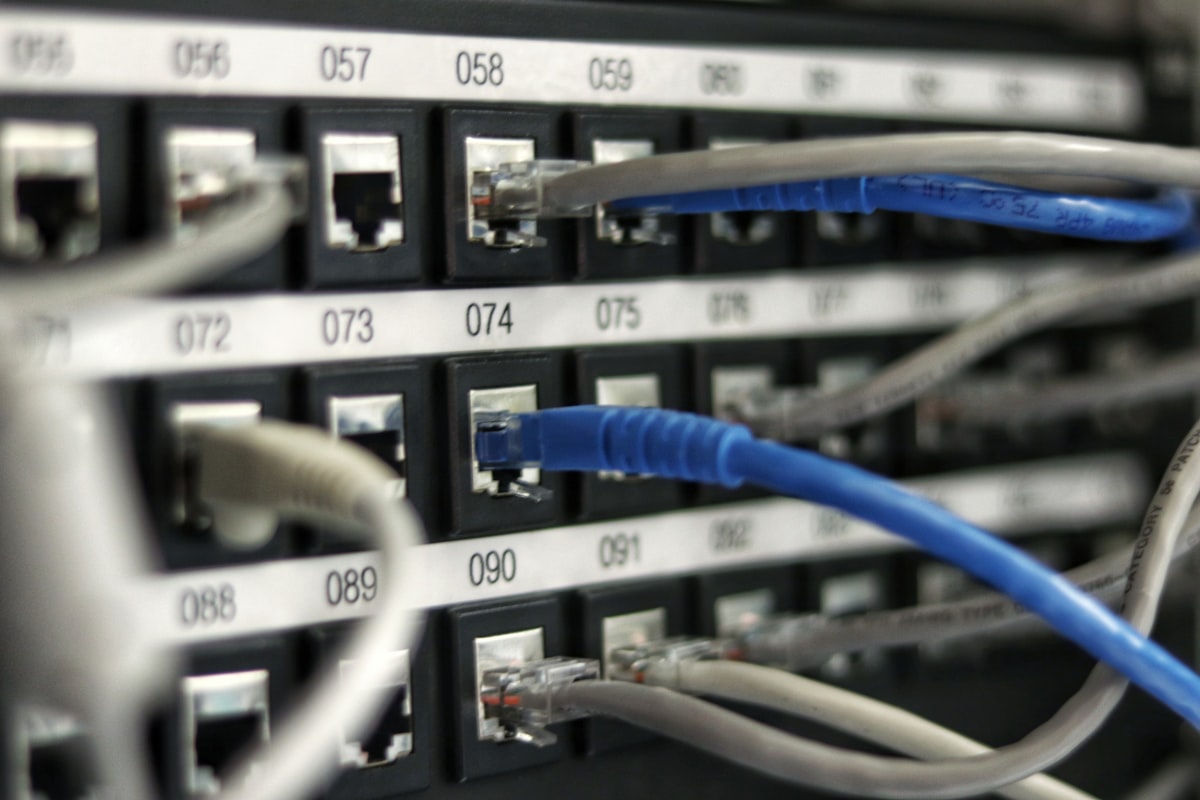
Wi-Fi is the single most common cause of IPTV buffering. Even fast Wi-Fi can have intermittent drops that cause freezing. A wired Ethernet connection is always more stable.
- Fire Stick: Use an Amazon Ethernet adapter (plugs into the power port)
- Smart TV: Most have a built-in LAN port — use a Cat6 cable
- MAG Box: Has a built-in Ethernet port — always use it
- Android TV box: Has a built-in LAN port on most models
Fix 3: Switch to a Backup Server
IPTV servers can get overloaded at peak times — especially during major live events like Champions League finals or Premier League matches. CloudStream provides multiple backup servers included in your subscription.
To switch servers in IPTV Smarters Pro: go to Settings → Server and select an alternative server. In TiviMate: go to Settings → Playlists and add a backup playlist URL. Contact CloudStream support on WhatsApp for your backup server details.
Fix 4: Restart Everything
A simple restart fixes more issues than any other solution:
- Close your IPTV app completely
- Unplug your router for 30 seconds and plug it back in
- Restart your streaming device (Fire Stick, Smart TV, etc.)
- Reopen the IPTV app and try the channel again
Fix 5: Clear App Cache
A full app cache can cause slowdowns and freezing:
- Fire Stick: Settings → Applications → Manage Installed Applications → your IPTV app → Clear Cache
- Android TV: Settings → Apps → your IPTV app → Clear Cache
- iPhone/iPad: Uninstall and reinstall the app (iOS does not have a clear cache option)
Fix 6: Change Your DNS Settings
Your ISP’s default DNS can sometimes slow down IPTV connections. Try switching to a faster DNS:
- Google DNS: 8.8.8.8 and 8.8.4.4
- Cloudflare DNS: 1.1.1.1 and 1.0.0.1
Change DNS in your router settings or directly on your streaming device’s network settings.
Fix 7: Reduce Stream Quality
If you are on a slower connection, switching from 4K to FHD or HD will reduce buffering significantly. In most IPTV apps you can right-click or long-press a channel to select a lower quality stream.
Still Buffering? Contact Support
If none of the above fixes work, the issue may be server-side. CloudStream’s 24/7 support team can check your server status, assign you to a less congested server, or troubleshoot your specific setup.
Message CloudStream support on WhatsApp — typical response time is under 5 minutes.