How to Watch Live TV on iPhone and iPad: Complete Guide (2026)
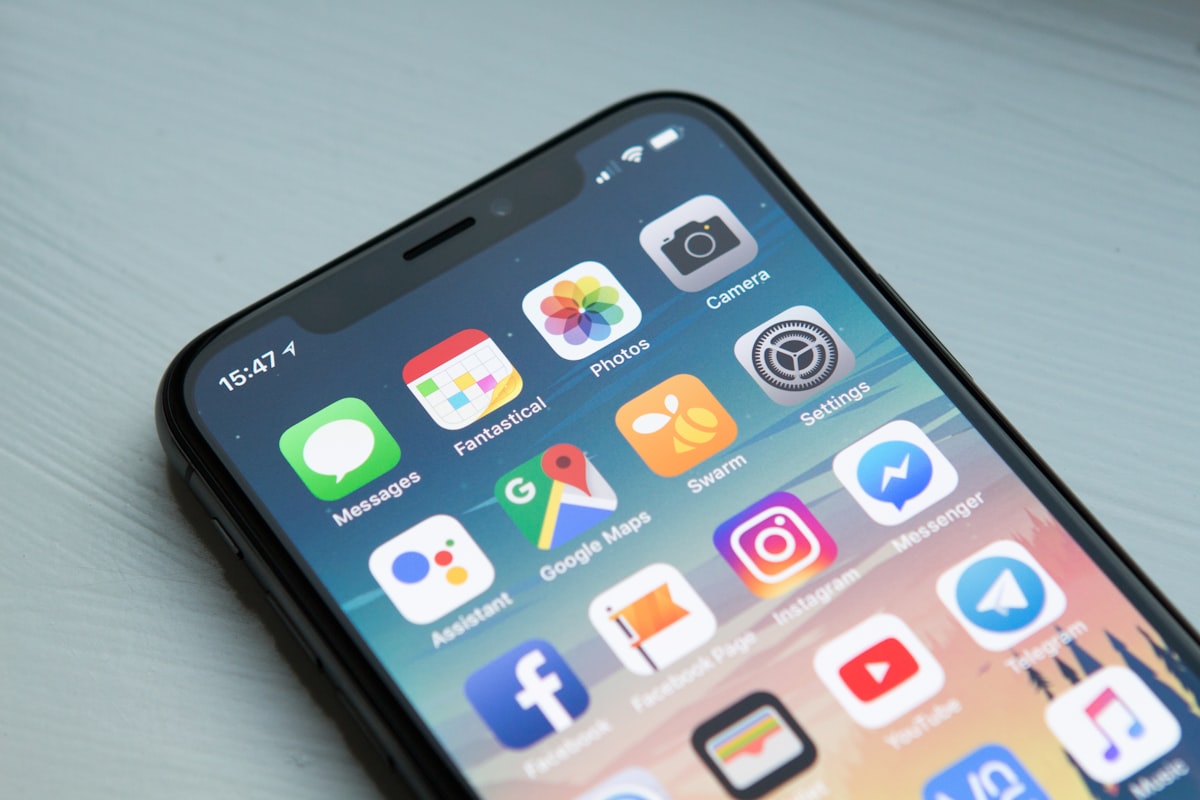
Apple’s App Store restrictions make IPTV setup on iPhone and iPad slightly different from Android — but it is still straightforward. This guide covers the best IPTV apps available on iOS and exactly how to set them up with your CloudStream credentials.
Best IPTV Apps for iPhone and iPad
| App | Method | Cost | Rating |
|---|---|---|---|
| IPTV Smarters Pro | Xtream Codes + M3U | Free | 4.2/5 |
| GSE Smart IPTV | M3U + Xtream Codes | Free (Pro available) | 4.4/5 |
| Flex IPTV | M3U | Free | 4.1/5 |
| IPTV Streamer Pro | M3U | £2.99 | 4.0/5 |
Method 1: IPTV Smarters Pro (Recommended)
- Open the App Store on your iPhone or iPad
- Search for IPTV Smarters Pro and install it
- Open the app and tap Add User
- Select Login with Xtream Codes API
- Enter a name (e.g. “CloudStream”), your Server URL, Username and Password
- Tap Add User — channels load in 1–2 minutes
Your CloudStream credentials are sent via WhatsApp instantly after subscribing or starting a free trial. If you have not received them, contact support on WhatsApp.
Method 2: GSE Smart IPTV (Best for M3U)
- Download GSE Smart IPTV from the App Store
- Open the app and tap the menu icon (top left)
- Go to Remote Playlists
- Tap the + button
- Select Add M3U URL
- Paste your M3U link and give it a name
- Tap Add — your channels will load
Getting Your CloudStream M3U or Xtream Codes
You need either an M3U URL or Xtream Codes credentials (Server URL, Username, Password). Start a free 24-hour trial — no credit card required — and receive your credentials via WhatsApp within minutes.
Tips for Best Performance on iPhone and iPad
- Connect to Wi-Fi for the best picture quality — mobile data can buffer on 4K streams
- Use AirPlay to cast from your iPhone to Apple TV or a smart TV
- Enable background app refresh for uninterrupted playback
- Use the EPG guide in your app to browse what is on
Casting to Your TV from iPhone
You can watch on your big screen by casting from your iPhone:
- AirPlay: Swipe down for Control Centre, tap Screen Mirror, select your Apple TV or AirPlay-compatible TV
- Chromecast: Use GSE Smart IPTV’s built-in Chromecast support
- HDMI adapter: Use a Lightning to HDMI or USB-C to HDMI adapter for a wired connection
Troubleshooting iPhone IPTV Issues
App Not Found in App Store
Some IPTV apps are region-restricted. Try changing your App Store region to the UK or US in your Apple ID settings to access more apps.
Video Stops After a Few Minutes
This is usually a low power mode or background refresh issue. Disable Low Power Mode and enable Background App Refresh for your IPTV app in Settings.
Start Streaming on Your iPhone Today
CloudStream works perfectly on iPhone and iPad with full 4K support and 55,000+ channels. Get your free 24-hour trial here — no credit card needed.